
|
PixInsight |
Optional: NBN - Narrow Bandwidth Normalization Scripts by Bill Blanshan and Mike Cranfield |
updated: 2026-04-03 |

|
Purpose |
To bring more (false!) color into the image |
|
Activation |
Main step: Script > Toolbox > CreateHubblePaletteFromOSC |
|
Input |
any still linear, denoised star-less image from an OSC color camera |
|
Output |
a linear color image in false colors depending on the selected palette |
|
Next Steps |
|
|
Repository Link |
https://www.cosmicphotons.com/pi-modules/narrowbandnormalization/ |
|
Tutorial |
|
|
Version |
1.0 |
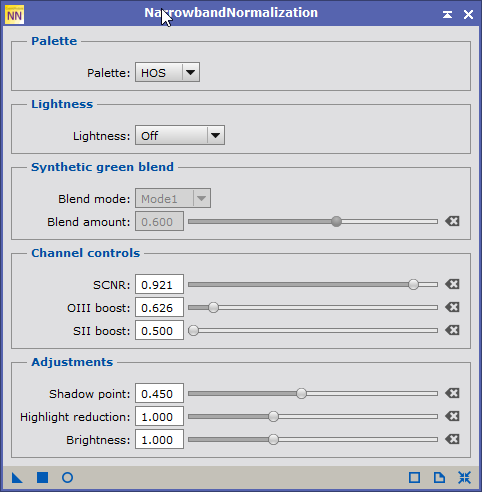
Installation and usage remark from the development team:
The script is installed via the PixInsight repository.
Notes:
- You might run into an issue with installing scripts in the latest versions of Pixinsight where the script or processing icons don't show up in the menu after installation. To fix this, go to: Resources-Updates-Reset Update. All scripts will be deactivated and are automatically re-installed after a restart on PixInsight.
- For a single-shot color (OSC) camera, the normalization scripts are designed to extract an approximation of H-alpha and OIII data from your broadband RGB image.
- The usage of narrow-band filters, such as the dual-band Optolong L-eXtreme filter, when shooting light frames, may lead to unwanted effects. This filter suppresses all wavelengths except Hα and OIII, blocking the SII wavelength.
Description
The NarrowbandNormalization (NBN) process is designed to balance the intensity between narrowband channels. It can be used on either linear or non-linear data but please note that the Lightness feature should NOT be used on linear data.
NarrowbandNormalization forms part of a collection of scripts and processes arising from a collaborative partnership between Bill Blanshan and Mike Cranfield. Both Bill and Mike are keen astrophotographers with a passion for bringing helpful image processing tools to the astrophotographic community. Bill's primary focus has been the development of straight forward methodologies for key parts of the image processing workflow. Mike's focus has been on converting those methodologies into script form so making them readily and easily accessible to users.
The process can be obtained from the following repository address: https://www.cosmicphotons.com/pi-modules/narrowbandnormalization/
The normalization process is an automated curve stretch we perform using math on the OIII and/or SII data channels to boost the intensity of these channels to that of the HA channel. This boost attempt will try to equalize the data to help better show off the gases located within the nebula.
The NBN process works on both linear and non-linear data (starless); however, there is benefit to NBN processing on non-linear data as we have introduced a Lightness feature which will allow you to use different lightness modes to help show off your image from many different perspectives, i.e. you can select Ha, or SII for example. Lightness mode does not work on linear data!
We also offer multiple pallet modes depending on the data you are trying to process; for example, if you have an image from OSC camera which was taken with a dual narrowband filter, you will want to select the HOO pallet.
If you are processing mono data and have an SHO, HOO, HSO image, you need to select the appropriate pallet for that data, i.e., SHO for SHO data.
These pallet modes DO NOT create an SHO image from HOO data, so make sure you have your data compiled before running NBN and run the appreciate NBN pallet. NBN will make an attempt to equalize these channels while maintaining background neutral, but we do give you other options to increase/decrease the channel boost so you have more control of the image.
Important Operation notes:
The preferred choice for narrowband normalization is on a non-linear starless image. You can run this process on a linear image, however you will not be able to use the new Lightness feature. When stretching an image that has been normalized in linear mode, the preferred stretch method after is a "Linked" stretched
Palette
This parameter should be used to specify how the narrrowband data has been distributed between the channels. It allows the process to know what data to expect in each channel. If you are using dual band OSC data you should choose HOO as the palette unless you have done some other processing before NBN which makes something else appropriate.
Lightness
This parameter allows you to adjust the lightness channel to be used after the narrowband normalization has been completed.
You can chose:
- to make no lightness adjustment (Off);
- to preserve the lightness channel of the original image in the normalized image (Preserve); or
- to use one of the data channels (eg Ha), as your new lightness channel.
- Note that you should NOT use the Lightness control on Linear data - simply set it to Off.
Synthetic green blend
The parameters in this section are only relevant if the image uses the HOO palette.
If the image Palette is HOO the NBN process will use the green channel for the OIII data. If the image has been constructed from separate Ha and OIII filters the green and blue channels will be identical anyway. If it is OSC data then the green channel will normally have better signal to noise ratio due to the construction of OSC sensors with two green pixels to each blue pixel.
Thus the normalized HOO image will have the Ha data in the red channel and the normalized OIII data in the blue channel. That leaves the green channel to be defined. The parameters in this section allow you to do this.
For this a linear blend of two channels will be used. The two channels to use is defined by the Blend mode parameter and the amount of each channel is defined by the Blend amount parameter according to the following table.
Blend mode |
Bland channel |
base channel |
|
Mode 1 |
Original Ha |
Normalized OIII |
|
Mode 2 |
Normalized OIII |
Original OIII |
|
Mode 3 |
Original Ha |
Original OIII |
The green channel is then formed as:
green channel = (1 - <Blend amount>) * <Base chanel> + <Blend amount> * <Blend channel>
SNCR
This parameter specifies whether to apply Subtractive Chromatic Noise Reduction (SCNR) to the green channel of the image using the Average Neutral protection method.
SCNR green is computed by the following formula:
<SCNR green> = minimum( green, (red + blue)/2 )
The green channel is then adjusted as:
green = (1 - <SCNR parameter>) * green + <SCNR parameter> * <SCNR green>
SCNR is applied after the narrowband normalization process but before any Lightness and other adjustments.
OIII boost
The NBN process seeks to balance the intensity of the various channels. The way this is done is described in more detail later in this document. You can adjust the intensity of the OIII channel using this parameter. A value greater than 1.0 will boost the OIII intensity while a value less than 1.0 will reduce it.
If used on an HOO image, any Normalized OIII used in the Synthetic green blend channel will include the effect of this parameter.
SII boost
The NBN process seeks to balance the intensity of the various channels. The way this is done is described in more detail later in this document. You can adjust the intensity of the SII channel using this parameter. A value greater than 1.0 will boost the SII intensity while a value less than 1.0 will reduce it. Obviously, this parameter is not available in the HOO palette.
Highlight reduction
The Highlight reduction parameter can be used to reduce the intensity of the brighter parts of the image (or boost them if a value less then 1.0 is chosen). This is achieved by applying a mid tone transfer function stretch (ie a Histogram Transformation) to the image using the image itself as a mask.
Specifically an mtf balance factor (m) is calculated as follows:
m = 1.0 - (0.5 / <Highlight reduction parameter>)
Then a masked midtones transfer function (mtf) is applied so that each pixel sample value (v) is transformed as follows:
new v = mtf(m, v) * v + v * (1 - v)
This adjustment is applied after the Lightness adjustment but before the Brightness adjustment. For an explanation of the mtf please refer to the documentation for the Histogram Transformation process.
Brightness
The Brightness reduction parameter can be used to adjust the overall intensity of the image. This is achieved by applying a mid tone transfer function stretch (ie a Histogram Transformation) to the image.
Specifically an mtf balance factor (m) is calculated as follows:
m = (0.5 / <Brightness parameter>)
Then a midtones transfer function (mtf) is applied so that each pixel sample value (v) is transformed as follows:
new v = mtf(m, v)
This adjustment is applied after all other adjustments have been made. For an explanation of the mtf please refer to the documentation for the Histogram Transformation process.
More in the original documentation (PixInsight Process Explorer)
Created with the Personal Edition of HelpNDoc: Produce Kindle eBooks easily